My Haas Welcome,
!
Haas Tooling MyHaas/HaasConnect Sign In Register Haas Tooling MyHaas/HaasConnect Sign Out Welcome, My Machines Latest Activity My Quotes My Account My Users Sign Out
Find Your Distributor
  1. Select Language
    1. English
    2. Deutsch
    3. Español - España
    4. Español - México
    5. Français
    6. Italiano
    7. Português
    8. Český
    9. Dansk
    10. Nederlands
    11. Magyar
    12. Polski
    13. Svenska
    14. Türkçe
    15. 中文
    16. Suomi
    17. Norsk
    18. الإنجليزية
    19. български
    20. Hrvatski
    21. Ελληνικά
    22. Română
    23. Slovenský
    24. Slovenščina
    25. 한국어
    26. 日本語
    27. Українська
  • machines Main Menu
    • Vertical Mills
      Vertical Mills
      Vertical Mills View All
      • Vertical Mills
      • VF Series
      • Universal Machines
      • VR Series
      • VP-5 Prismatic
      • Pallet-Changing VMCs
      • Mini Mills
      • Mold Machines
      • High-Speed Drill Centers
      • Drill/Tap/ Mill Series
      • Toolroom Mills
      • Compact Mills
      • Gantry Series
      • SR Sheet Routers
      • Extra-Large VMC
      • Double-Column Mills
      • Pocket Mill
    • Multi-Axis Solutions
      Multi-Axis Solutions
      Multi-Axis Solutions View All
      • Multi-Axis Solutions
      • Y-Axis Lathes
      • 5-Axis Mills
    • Lathes
      Lathes
      Lathes View All
      • Lathes
      • ST Series
      • Dual-Spindle
      • Box Way Series
      • Toolroom Lathes
      • Chucker Lathe
      • Haas Bar Feeder V2
      • Haas Bar Feeder 12
    • Horizontal Mills
      Horizontal Mills
      Horizontal Mills View All
      • Horizontal Mills
      • 50-Taper
      • 40-Taper
    • Rotaries & Indexers
      Rotaries & Indexers
      Rotaries & Indexers View All
      • Rotaries & Indexers
      • Rotary Tables
      • Indexers
      • 5-Axis Rotaries
      • Extra-Large Rotaries
    • Special Series
      Special Series
      Special Series View All
      • Special Series
      • EU_Series_Redirect
    • Automation Systems
      Automation Systems
      Automation Systems View All
      • Automation Systems
      • Mill Automation
      • Lathe Automation
      • Automatic Parts Loaders
      • Automation Models
    • Desktop Machines
      Desktop Machines
      Desktop Machines View All
      • Desktop Machines
      • Desktop Mill
      • Desktop Lathe
      • Control Simulator, Standard
      • Control Simulator, Premium
    • Shop Equipment
      Shop Equipment
      Shop Equipment View All
      • Shop Equipment
      • Bandsaw
      • Vertical Saw
      • Miter Saw
      • Knee Mill
      • Manual Lathe
      • Laser Cutting Machines
    • Pocket Machines
      Pocket Machines
      Pocket Machines View All
      • Pocket Machines
      • Pocket Mill
    • QUICK LINKS Special Series  Special Series 
      EU SERIES EU SERIES BUILD & PRICE | PRICE LIST BUILD & PRICE | PRICE LIST In-Stock Machines In-Stock Machines WHAT’S NEW WHAT’S NEW YOUR FIRST CNC YOUR FIRST CNC
      SHOPPING TOOLS
      • Build & Price a Haas
      • Price List
      • Available Inventory
      • CNCA Financing
      WANT TO TALK TO SOMEONE?

      A Haas Factory Outlet (HFO) can answer your questions, and walk you through your best options.

      CONTACT YOUR DISTRIBUTOR >
  • Options Main Menu
    • The Haas Control Value Option Packages
      Value Option Packages
      Value Option Packages View All
      • Value Option Packages
    • Product Image Spindles
      Spindles
      Spindles View All
      • Spindles
    • Product Image Tool Changers
      Tool Changers
      Tool Changers View All
      • Tool Changers
    • Product Image 4th- | 5th-Axis
      4th- | 5th-Axis
      4th- | 5th-Axis View All
      • 4th- | 5th-Axis
    • Product Image Turrets & Live Tooling
      Turrets & Live Tooling
      Turrets & Live Tooling View All
      • Turrets & Live Tooling
    • Product Image Probing
      Probing
      Probing View All
      • Probing
    • Haas Chip & Coolant Management Chip & Coolant Management
      Chip & Coolant Management
      Chip & Coolant Management View All
      • Chip & Coolant Management
    • The Haas Control The Haas Control
      The Haas Control
      The Haas Control View All
      • The Haas Control
    • Product Image Product Options
      Product Options
      Product Options View All
      • Product Options
    • Product Image Tooling & Fixturing
      Tooling & Fixturing
      Tooling & Fixturing View All
      • Tooling & Fixturing
    • Product Image Workholding
      Workholding
      Workholding View All
      • Workholding
    • Product Image 5-Axis Solutions
      5-Axis Solutions
      5-Axis Solutions View All
      • 5-Axis Solutions
      • 5 Easy Steps to 5-Axis
    • QUICK LINKS Special Series  Special Series 
      EU SERIES EU SERIES BUILD & PRICE | PRICE LIST BUILD & PRICE | PRICE LIST In-Stock Machines In-Stock Machines WHAT’S NEW WHAT’S NEW YOUR FIRST CNC YOUR FIRST CNC
      SHOPPING TOOLS
      • Build & Price a Haas
      • Price List
      • Available Inventory
      • CNCA Financing
      WANT TO TALK TO SOMEONE?

      A Haas Factory Outlet (HFO) can answer your questions, and walk you through your best options.

      CONTACT YOUR DISTRIBUTOR >
  • Why Haas Main Menu
      Discover the Haas Difference
    • Why Haas
    • MyHaas
    • Education Community
    • Industry 4.0
    • Haas Certification
    • Customer Testimonials
  • Service Main Menu
      Welcome to Haas Service
      SERVICE HOME Operator’s Manuals How-To Procedures Troubleshooting Guides Preventive Maintenance Haas Parts Haas Tooling Videos
  • Videos Main Menu
  • Main Menu
    • View All
    • View All
    • View All
    • View All
      • HTEC Curriculum Support
    • View All
      • Haas 10 kg Cobot Package
      • Cobot Kits
      • DC-1 Drill Center
      • CNC Sales News
    • View All
    • View All
      • contact-us-test
      • 4 - AUTOMATION SYSTEMS
      • Carousel-V2
      • expert test
      • Demo_Day_Trident-test
      • Link Test
      • image-sale-tag-test
    • View All
      • Choose Options
    • View All
    • View All
    • View All
    • View All
    • View All
      • calc-test
    • View All
    • QUICK LINKS Special Series  Special Series 
      EU SERIES EU SERIES BUILD & PRICE | PRICE LIST BUILD & PRICE | PRICE LIST In-Stock Machines In-Stock Machines WHAT’S NEW WHAT’S NEW YOUR FIRST CNC YOUR FIRST CNC
      SHOPPING TOOLS
      • Build & Price a Haas
      • Price List
      • Available Inventory
      • CNCA Financing
      WANT TO TALK TO SOMEONE?

      A Haas Factory Outlet (HFO) can answer your questions, and walk you through your best options.

      CONTACT YOUR DISTRIBUTOR >
  • Haas Tooling Main Menu
  • Haas Service Parts Main Menu

My Haas Welcome,
!
Haas Tooling MyHaas/HaasConnect Sign In Register Haas Tooling MyHaas/HaasConnect Sign Out Welcome, My Machines Latest Activity My Quotes My Account My Users Sign Out
Find Your Distributor
  1. Select Language
    1. English
    2. Deutsch
    3. Español - España
    4. Español - México
    5. Français
    6. Italiano
    7. Português
    8. Český
    9. Dansk
    10. Nederlands
    11. Magyar
    12. Polski
    13. Svenska
    14. Türkçe
    15. 中文
    16. Suomi
    17. Norsk
    18. الإنجليزية
    19. български
    20. Hrvatski
    21. Ελληνικά
    22. Română
    23. Slovenský
    24. Slovenščina
    25. 한국어
    26. 日本語
    27. Українська
×

Search Results

Web Pages

Images

    • <
    • 1
    • >

20 - NGC - Remote Jog Handle

Next Gen Control Electrical - Service Manual


  • 1 - NGC - Introduction
  • 2 - NGC - Activation
  • 3 - NGC - Software Update
  • 4 - NGC - Firmware Update
  • 5 - NGC - Configuration
  • 6 - NGC - Error Report and Backup
  • 7 - NGC - Main Processor
  • 8 - NGC - I/O and TC PCB
  • 9 - NGC - CAN Systems and Autodoor
  • 10 - NGC - Servo Motors and Axis Cables
  • 11 - NGC - 4th and 5th Axis
  • 12 - NGC - Servo Amplifiers
  • 13 - NGC - Vector Drive
  • 14 - NGC - Regen
  • 15 - NGC - 320V Power Supply
  • 16 - NGC - Wye / Delta
  • 17 - NGC - Circuit Breaker and Transformer
  • 18 - NGC - PSUP PCB
  • 19 - NGC - SKBIF and LCD Monitor
  • 20 - NGC - Remote Jog Handle
  • 21 - NGC - 115V LED - WorkLights
  • 22 - NGC - CabCool
  • 23 - NGC - MyHaas
  • 24 - NGC - Networking
  • 25 - NGC - 8M PCB
  • 26 - NGC - Robot and Automation
  • 27 - NGC - Machine Data Collection
  • 28 - NGC - Control Icons
  • 29 - NGC - Sensors and Switches
  • 30 - NGC - USB
  • 31 - NGC - Keypad
  • 32 - NGC - Broken Tool Detection
  • 33 - NGC - IPFDM PCB
  • 34. NGC - LVPS
  • 35 - NGC - Camera Monitor System
  • 36 - NGC - High Intensity Lights
  • 37 - NGC - 24V LED - Worklights

Go To :

  • 20.1 RJH-C Installation
  • 20.2 RJH-T Installation
  • 20.3 RJH-XL Installation
  • 20.4 RJH - Troubleshooting Guide

20.1 Remote Jog Handle (RJH-C) - Installation

Recently Updated

Remote Jog Handle (RJH-C) - Installation


AD0049

Applies to machines built from: February, 2009

Introduction

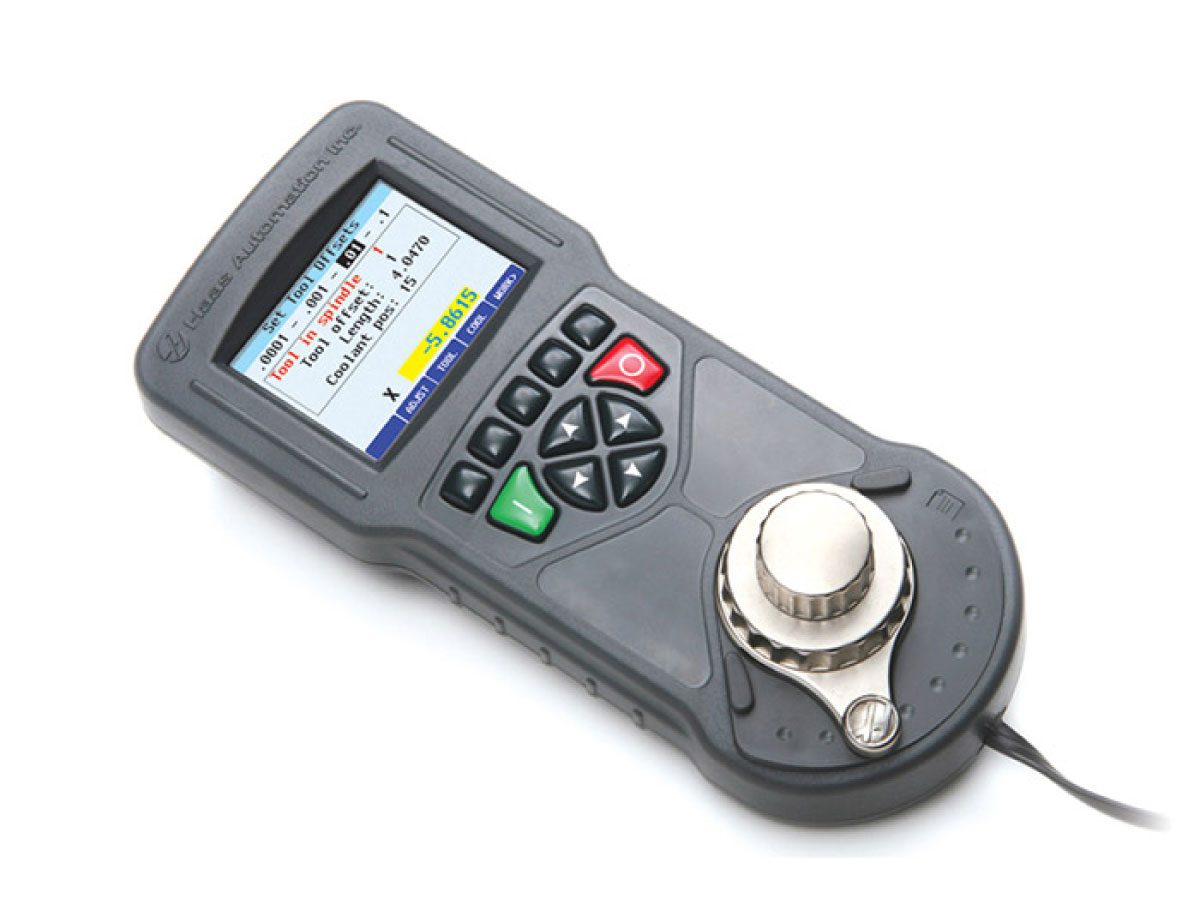
This service kit can be used for new RJH-C installations on compatible machines, or to replace the RJH-E with an RJH-C.

Machine Compatibility

Do this procedure for these machines:

  • Software 9.02A (lathe) or 16.02A (mill) or higher.
  • 15” Monitor
  • 34-4241C – SKBIF PCB with Handle Jog
  • 34-4412A - 16MB Coldfire II PCB

Document Applies to these Parts
KIT PN: 93-RJH-C, OPTION, REMOTE JOG HANDLE COLOR LCD 

KIT PN: 30-1069B, RJH COLOR LCD, HAND UNIT 

KIT PN: 93-1963, RETROFIT, RJH-E CONVERSION TO RJH-C


RJH-E Removal

If replacing an RJH-E with an RJH-C:

1. Verify that the machine meets the minimum requirements. Update hardware or software as necessary.

2. Power off the machine.

3a. (Thick Pendant) Remove the back cover of the pendant.

3b. (Storage Cabinet) Remove the back cover of the pendant, the cable cover inside the storage cabinet, and the swivel cover on top of the storage cabinet.

4. Remove the two 8-32 nuts to release the RJH-E cradle from the side of the pendant or storage cabinet.

5. Disconnect the two RJH-E cables from the SKBIF and pull them out of the control pendant, along with the cradle.

Leave the pendant disassembled for RJH-C installation. 

RJH-C Wiring Installation

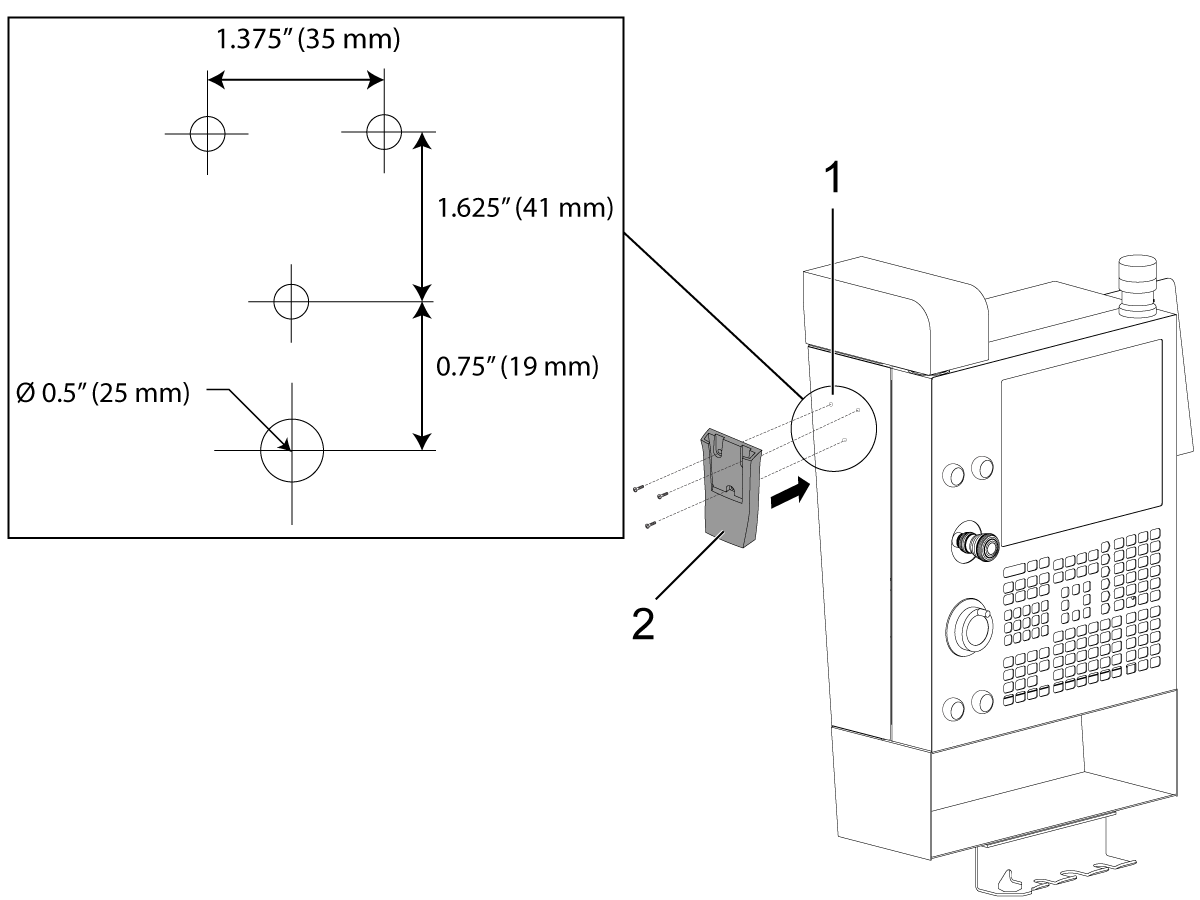
Free Hanging Thin Pendant or Thick Pendant with RJH-C Mounting

1. Remove the back cover of the pendant.

2. Remove any plugs or screws at the RJH-C mounting location.

3. Wire the 6’ RJ12 cord through the 1/2” hole in the pendant and connect to the SKBIF.

4. Install the end of the 6’ RJ12 cable in the RJH-C Holster.

5. Attach the RJH-C Holster to the pendant, storage cabinet or adapter bracket using three BHCS 10-32 x 1/2 screws.

RJH-C Hand Unit Installation

1

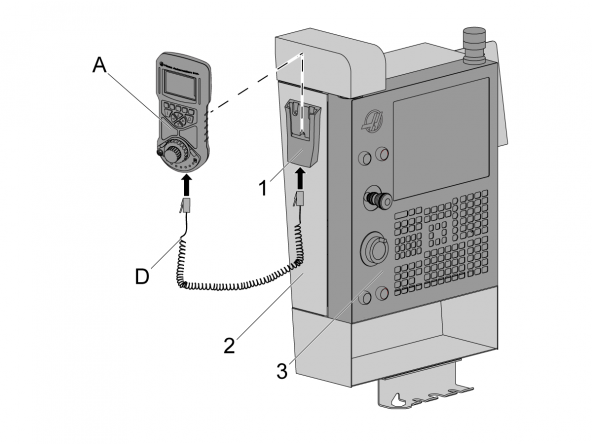
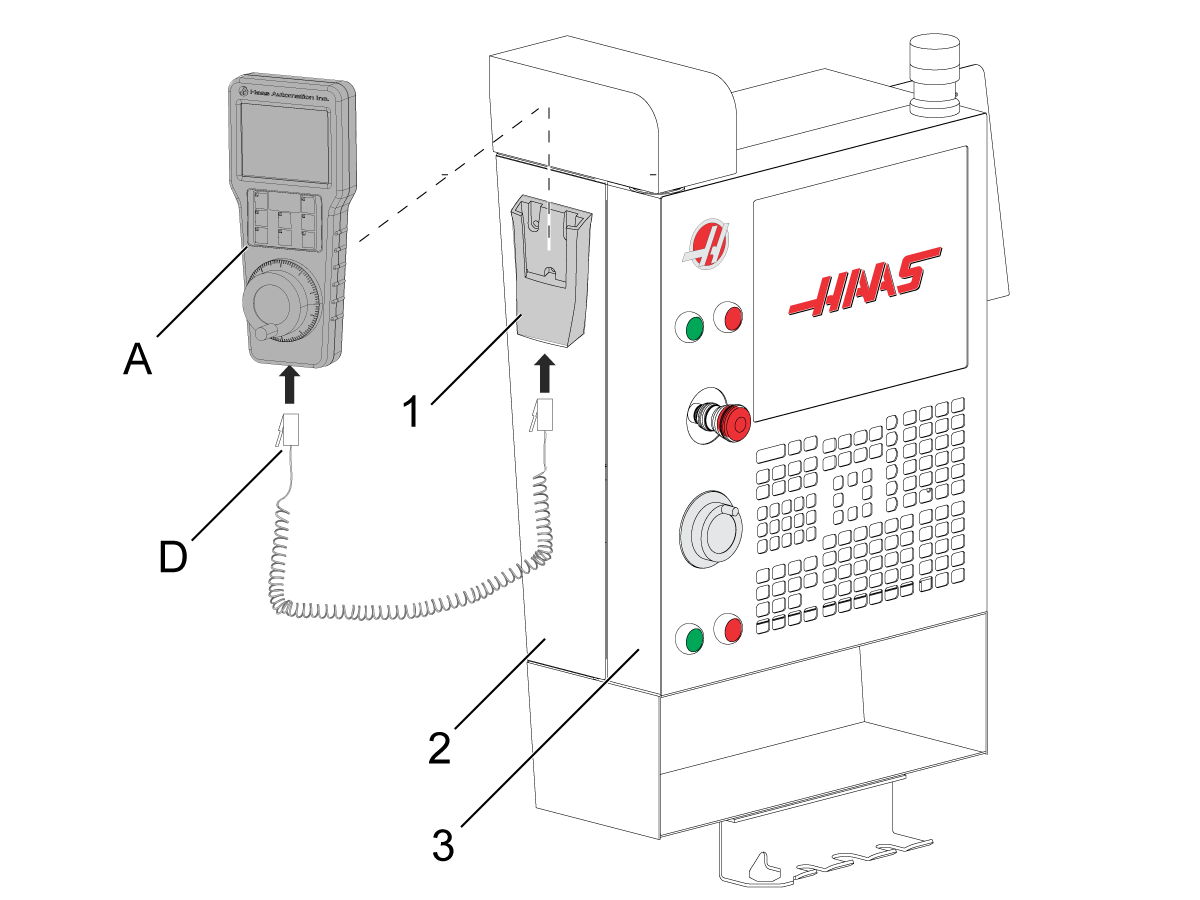
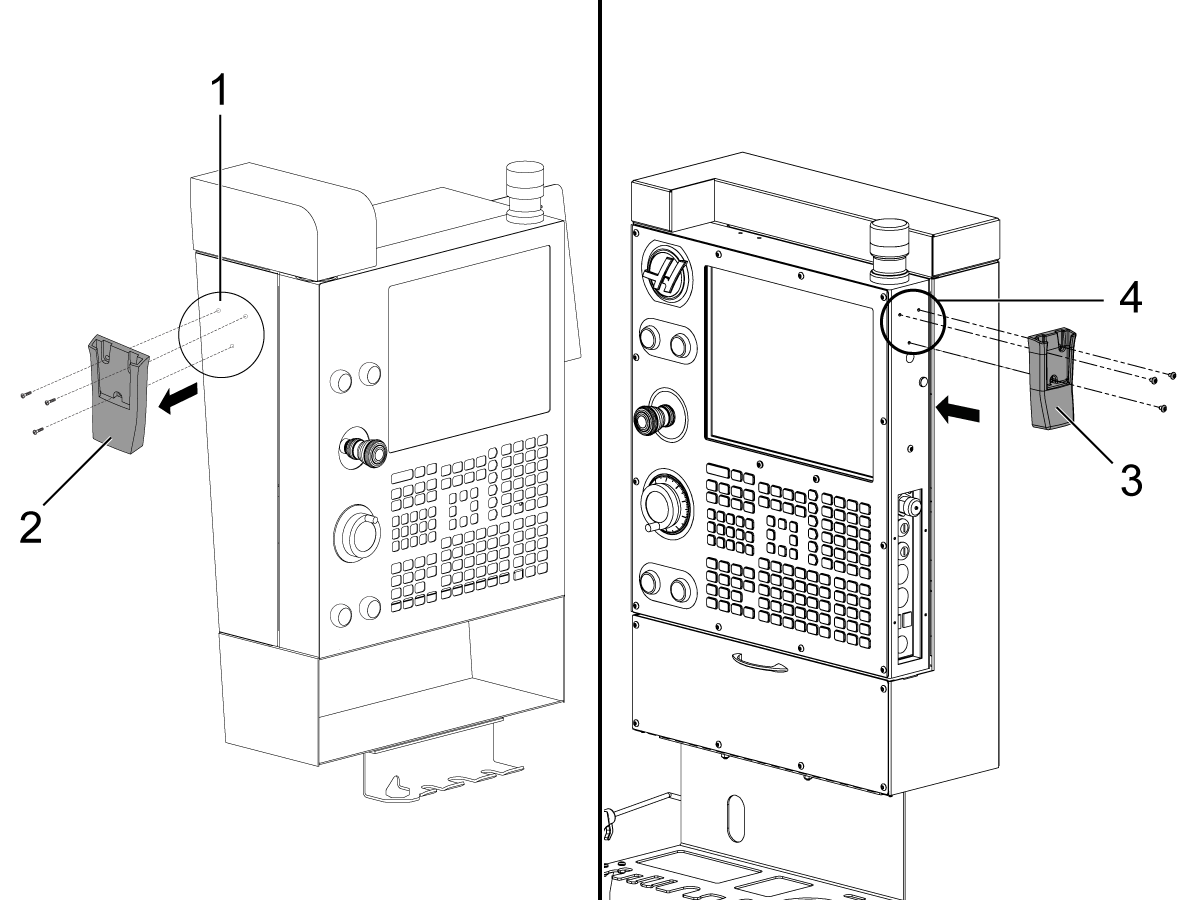
The holster [1] for the RJH-C is on the left side of the storage cabinet [2] (as shown).

If the machine has no storage cabinet, the holster is on the right side of the pendant [3].

Connect one end of the RJ12 COIL CORD [D] to the receptacle on the bottom of the holster.

Connect the other end to the receptacle to the bottom of the RJH-C [A].

2

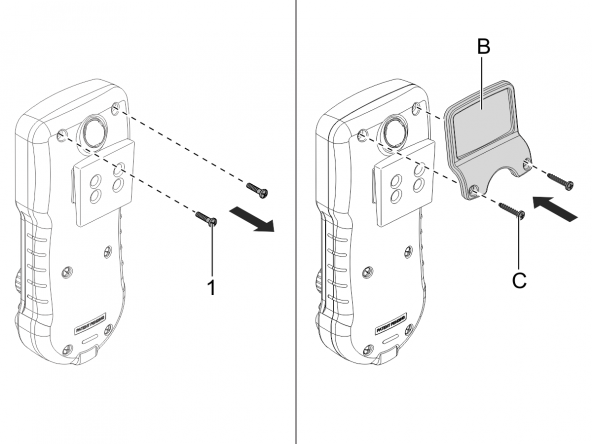
Note: Installation of the magnifier is optional.

Remove the (2) top screws [1] on the back of the RJH.

Attach the RJH-C MAGNIFIER [B].

Use the supplied longer Phillips head SCREWS [C].

Caution: Do not remove the other screws.

3

Hang up the RJH-C.

Reassemble the control pendant.

Plug any unused holes.

RJH-C Testing

1. Power on the machine.

2. Lift the RJH-C from the holster and verify that the screen turns on. Hang up the RJH-C and verify that the

screen turns off.

3. Lift the RJH-C from the holster and press [EDIT] on the control pendant. In Edit Mode, the RJH-C screen reads “RJH Inactive”. Press each button on the RJH-C unit and verify that each press produces a beep from the unit.

4. Press [HAND JOG] on the control pendant. Press the far right function button on the RJH-C to cycle through the menus, verifying that the “Set Work Offsets”, “Manual Jogging”, and “Set Tool Offsets” menus display properly.

5. In Manual Jog Mode, check the axis selector, shuttle jog knob, and pulse jog knob. Jog each axis using each knob and verify that axis motion occurs as commanded.

6. Turn the axis selector to the far right position.  Command the flashlight on and off, making sure it operates as commanded.

20.2 Remote Jog Handle (RJH-Touch) - Installation

Recently Updated

Remote Jog Handle (RJH-Touch) - Installation


AD0438

Applies to machines built from: February 2009

Introduction

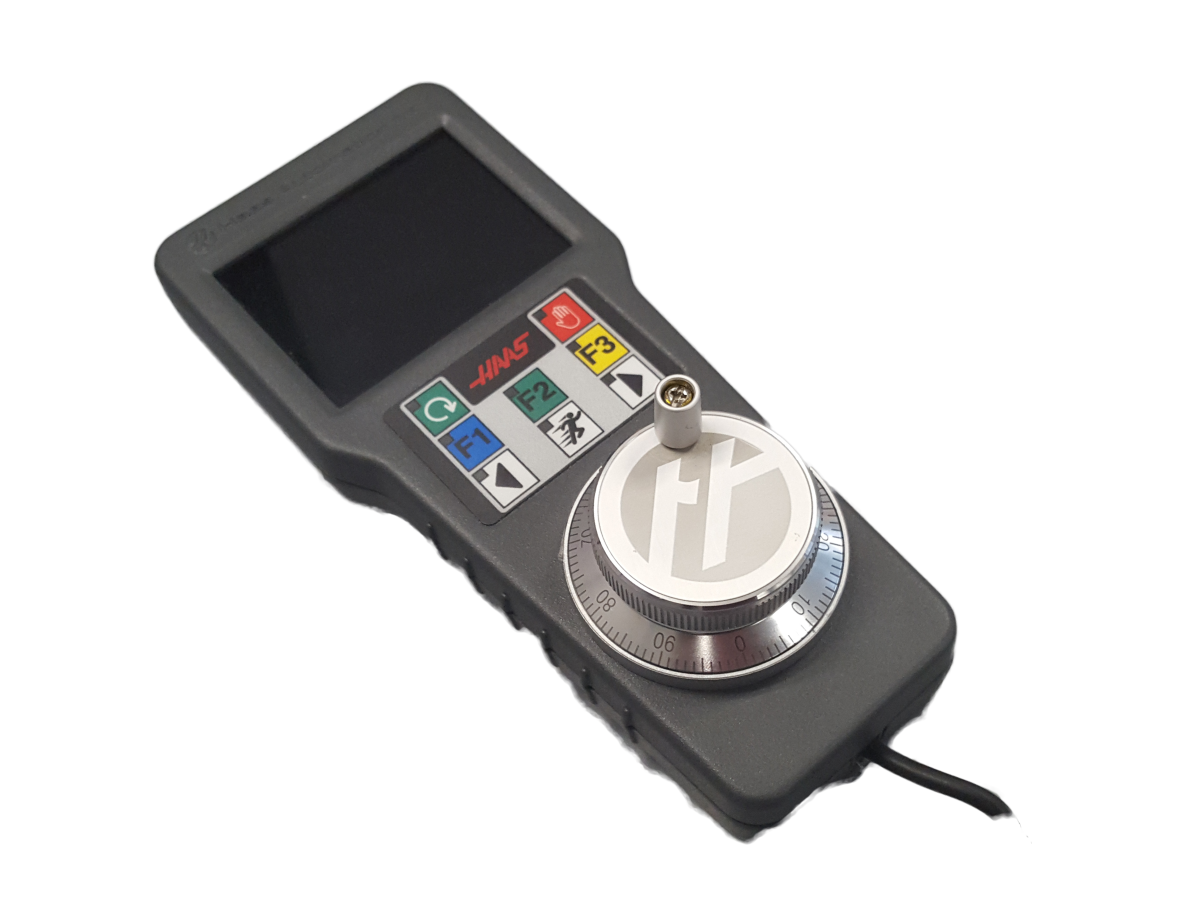
This service kit can be used to install the RJH-Touch on compatible machines or to replace the RJH-E/C with an RJH-Touch.

Minimum Requirements:

Classic Haas Control:

  • Software 9.02A (lathe) or 16.02A (mill) or higher
  • 34-4412A - 16MB Coldfire II PCB
  • 34-4241C - SKBIF PCB with Handle Jog
  • The RJH-Touch will operate in compatibility mode. (see compatibility mode operation sections below).

Next Generation Control:

  • For software versions 100.19.000.1000 and lower the RJH-Touch will operate in compatibility mode.
  • For software version 100.19.000.1102 and higher the RJH-Touch will have an updated user interface.  For a better user experience we recommend you upgrade to this software version.

This document applies to the following parts:

  • 93-1000007    Option, Remote Jog Handle Touch Screen
  • 32-0765        RJH Touch Screen Hand Unit
  • 32-0765A    RJH Touch Screen Hand Unit
  • 93-1963A      RJH-E to RJH-Touch Upgrade Kit

RJH-E Removal

If replacing an RJH-E with an RJH-Touch:

1. Verify that the machine meets the minimum requirements. Update hardware or software as necessary.

2. Power off the machine.

3a. (Thick Pendant) Remove the back cover of the pendant.

3b. (Storage Cabinet) Remove the back cover of the pendant, the cable cover inside the storage cabinet, and the swivel cover on top of the storage cabinet.

4. Remove the two 8-32 nuts to release the RJH-E cradle from the side of the pendant or storage cabinet.

5. Disconnect the two RJH-E cables from the SKBIF and pull them out of the control pendant, along with the cradle.

Leave the pendant disassembled for RJH-Touch installation. 

RJH-Touch Wiring Installation

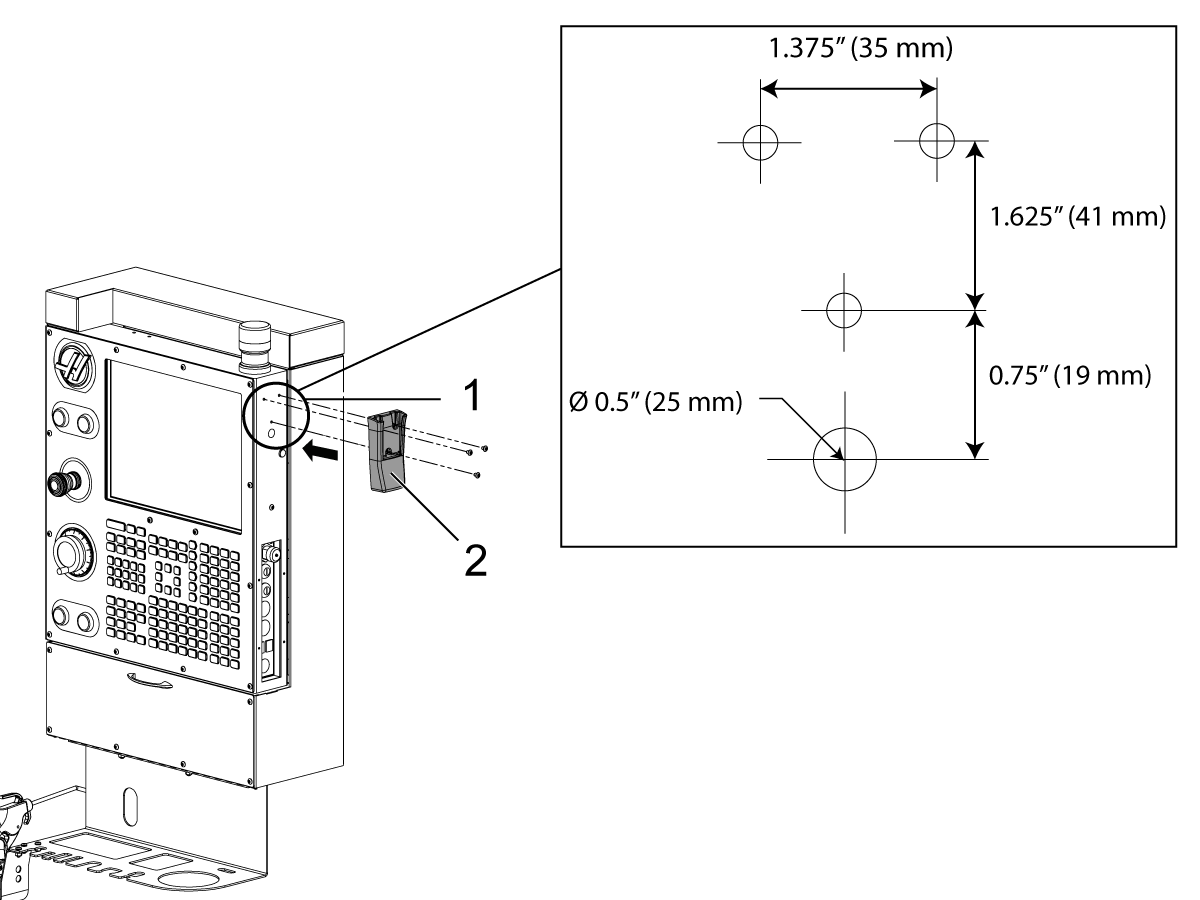
Free Hanging Thin Pendant or Thick Pendant with RJH-C Mounting [1].

1. Remove the back cover of the pendant.

2. Remove any plugs or screws at the RJH mounting location.

3. Wire the 6’ RJ12 cord through the 1/2” hole in the pendant and connect to the SKBIF.

4. Install the end of the 6’ RJ12 cable in the RJH Holster.

5. Attach the RJH Holster [2] to the pendant, storage cabinet or adapter bracket using three BHCS 10-32 x 1/2 screws.

RJH-Touch Hand Unit Installation

1

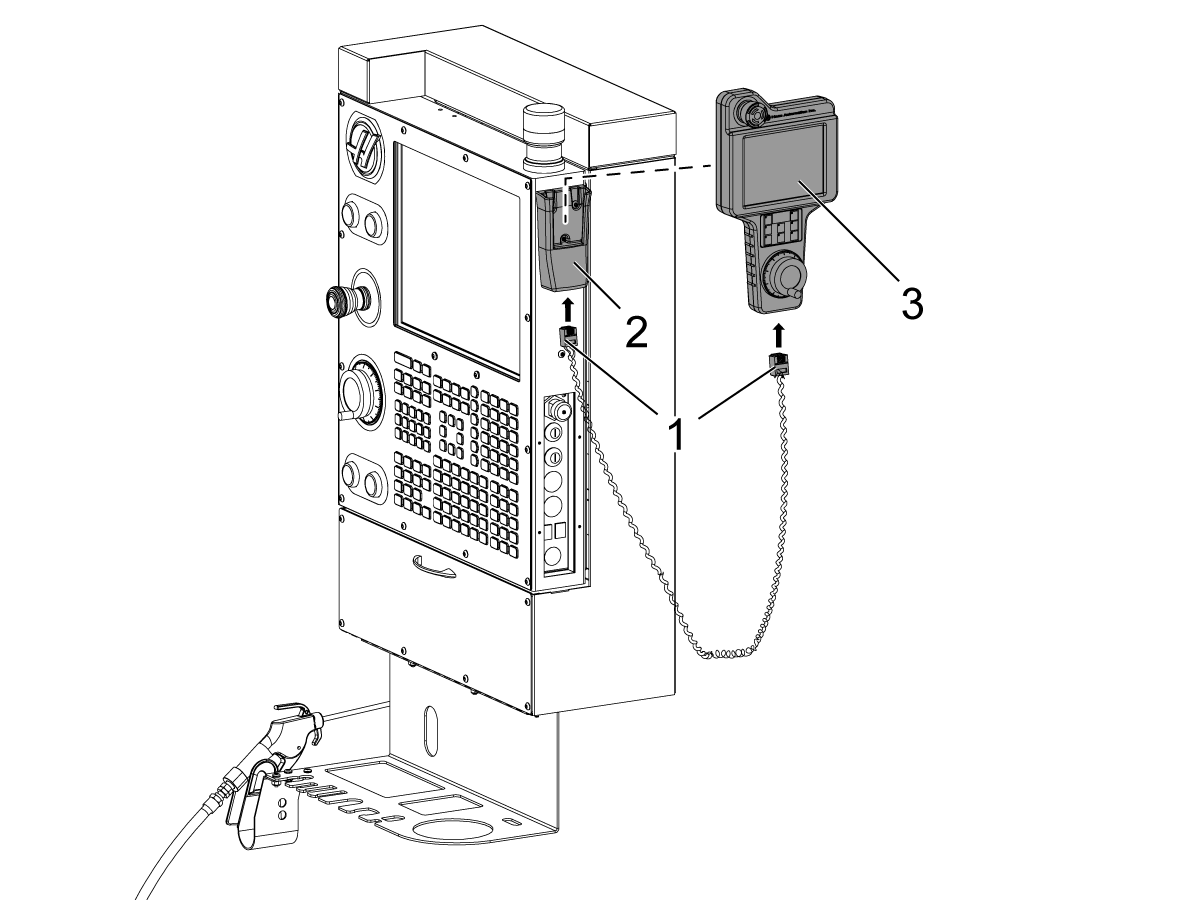
The holster [1] for the RJH-Touch is on the left side of the storage cabinet [2] (as shown).

If the machine has no storage cabinet, the holster is on the right side of the pendant [3].

Connect one end of the RJ12 COIL CORD [D] to the receptacle on the bottom of the holster.

Connect the other end to the receptacle to the bottom on the RJH-Touch [A].

2

Hang up the RJH-Touch.

Reassemble the control pendant.

Plug any unused holes.

RJH - Operation (100.19.000.1000 and lower)

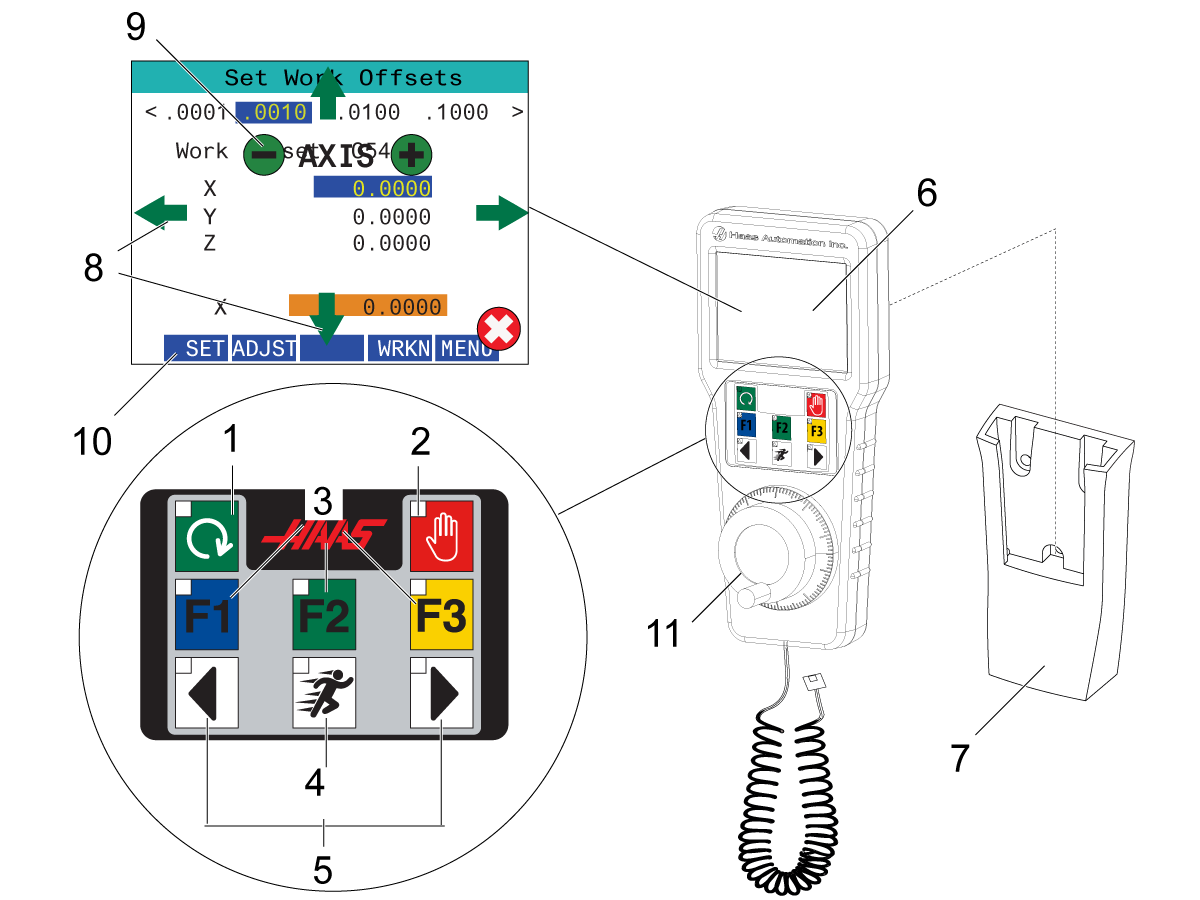
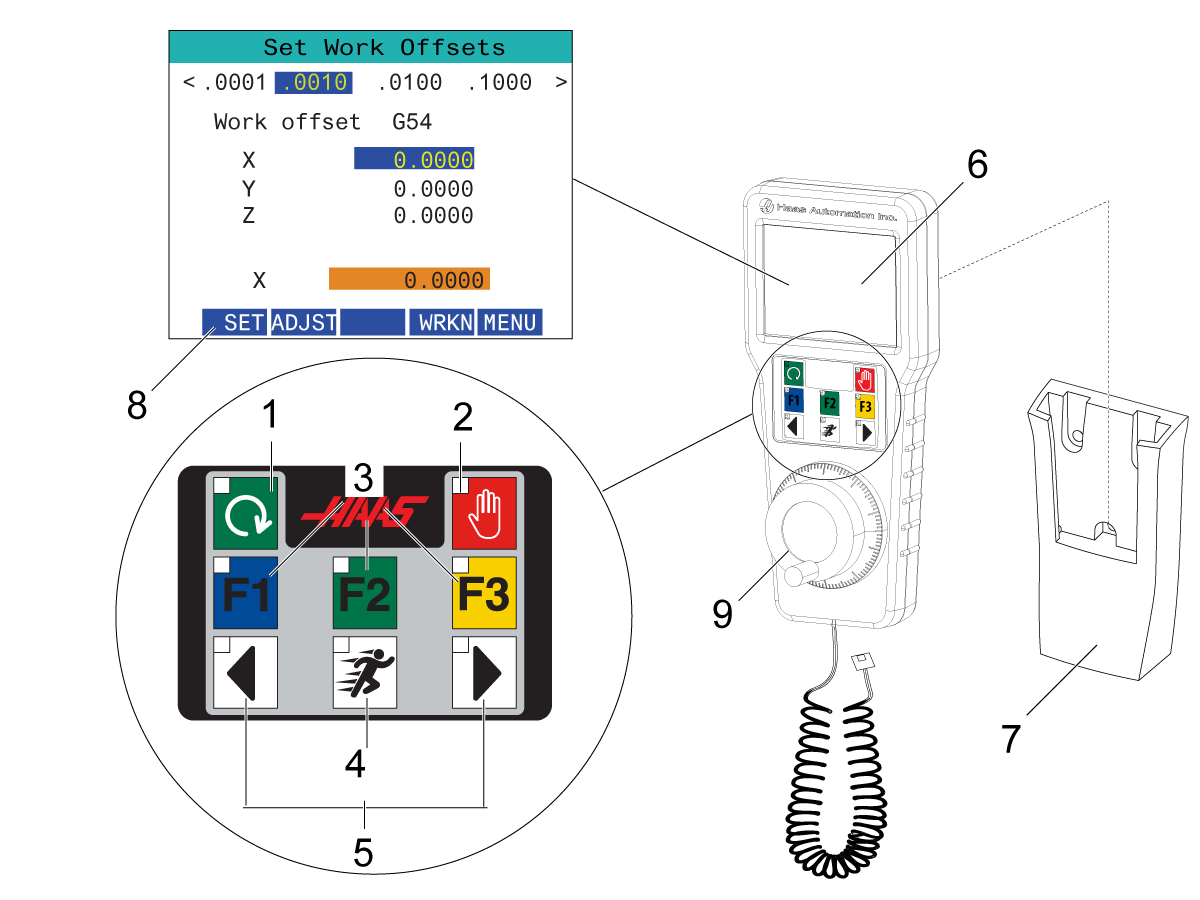
The illustration shows these components:

  1. Cycle Start. Has the same function as [CYCLE START] on the control pendant.
  2. Feed Hold. Has the same function as [FEED HOLD] on the control pendant.
  3. Function Keys. These keys are for future use.
  4. Rapid Jog button. This key doubles the jogging speed when pressed simultaneously with one of the jog direction keys [5].
  5. Jog Direction Keys. These keys work the same as keypad jog arrow keys. You can press and hold to jog the axis.
  6. LCD Touch Screen Display.
  7. Holster. To activate the RJH, lift it out of the holster. To deactivate the RJH, put it back into the holster.
  8. Overlay Arrows (compatibility mode). These arrows appear when you touch the screen. Use these arrows to navigate menus and choose jog rates. Press the X button to dismiss the overlay screen.
  9. (-) (+) Axis Selector (compatibility mode). These buttons appear on screen when you touch the screen. Use these to select a different axis. Press the X button to dismiss the overlay screen.
  10. Function Tabs. These tabs have different functions in different modes. Press the function tab that corresponds to the function you want to use.
  11. Handle Jog Wheel. This Handle Jog works like the jog handle on the control pendant. Each click of the handle jog moves the selected axis one unit of the selected jog rate.

Most RJH functions are available in Handle Jog mode. In other modes, the RJH screen displays information about the active or MDI program.

RJH-Touch - Jogging
  1. Make sure machine has been Zero returned.
  2. Press [Handle Jog] .
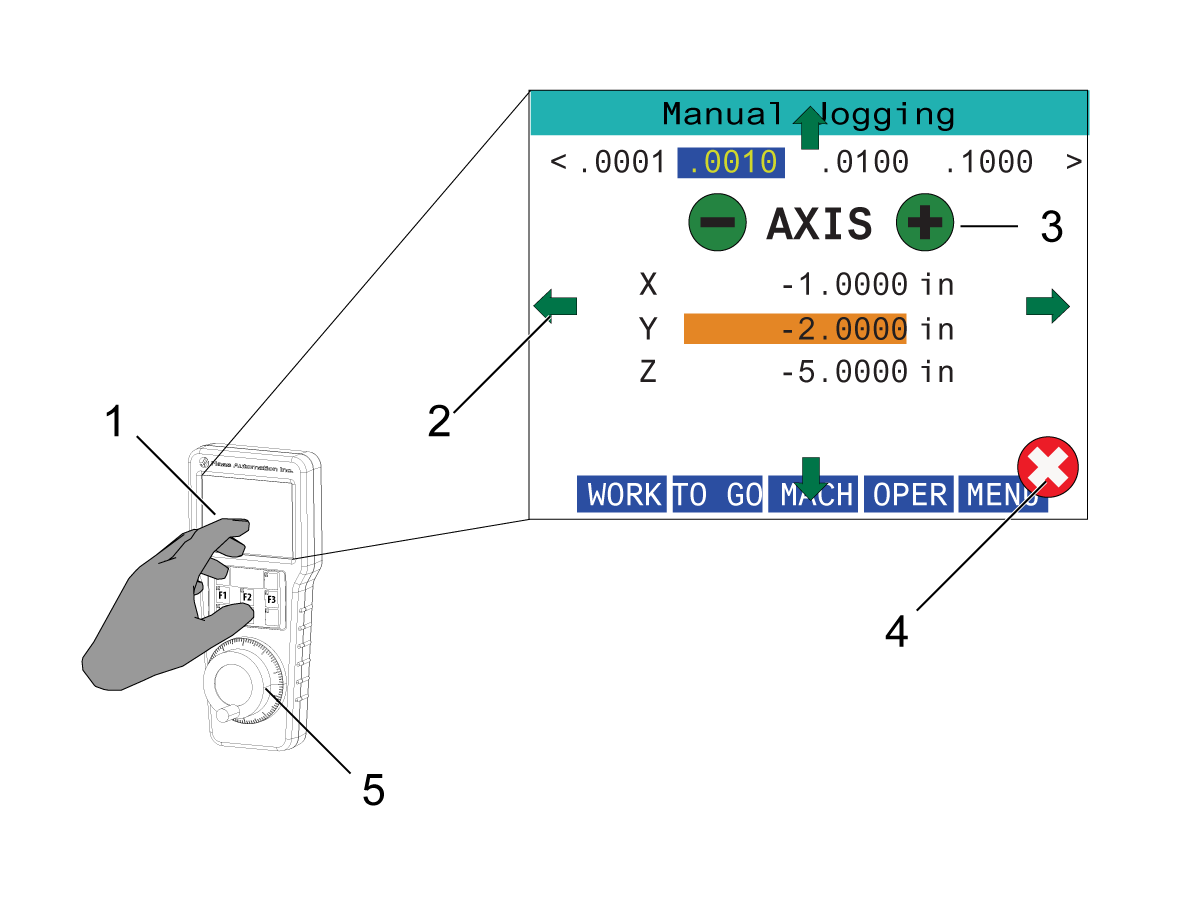
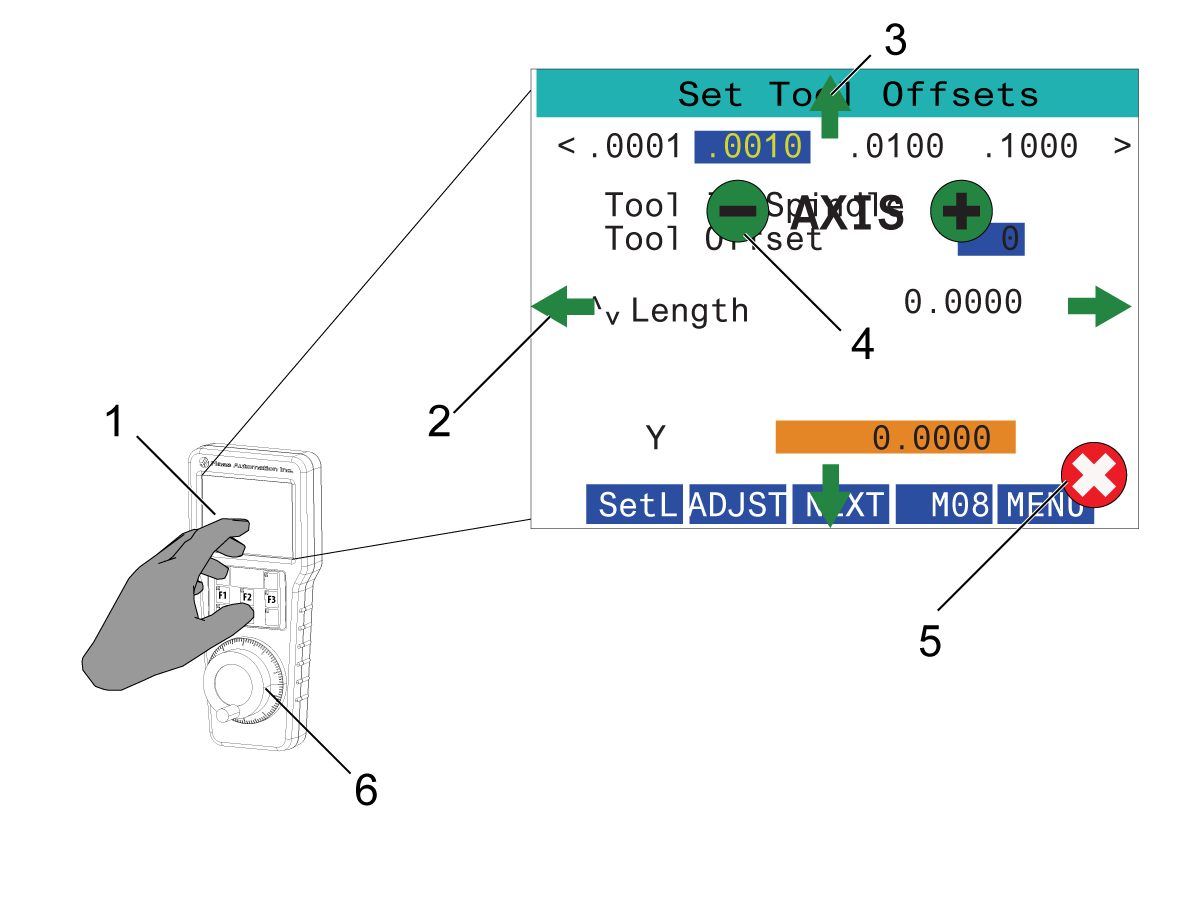
  3. Lift the RJH-Touch from the holster and touch the screen [1], an overlay should appear on the screen.
  4. Press the [LEFT] or [RIGHT] arrows [2] to change to the desired jog rate.
  5. Press the (-) or (+) buttons [3] to select the desired axis.
  6. Press the (X) button [4] to exit the overlay.
  7. Turn the handle jog wheel [5] to jog the axis.

RJH-Touch - Tool Offsets

To access this function on the RJH, press [OFFSET] on the control pendant and select the Tool Offsets page, or select TOOL OFFSETS from the RJH operation mode menu.

Press the center of the screen [1] for the navigation overlay to appear. 

Use the [LEFT] and [RIGHT] cursor arrow [2] keys to select the jog rate.

Use the [UP] and [DOWN] arrow keys [3] to highlight menu options.

Use the [(-)] and [(+)] buttons [4] on the screen to change the axis.

Press the [(X)] button [5] to dismiss the overlay.

Press the [NEXT] on the screen to change to the next tool.

To change the tool offset, highlight the TOOL OFFSET field and use the handle to change the value.

Use the jog handle [6] to jog the tool to the desired position. Press the [SETL] function key to record the tool length.

To adjust the tool length, for example, if you want to subtract from the tool length the thickness of the paper you used to touch off the tool:

a) Press the [ADJST] button on the screen.
b) Use the handle jog to change the value (positive or negative) to add to the tool length.
c) Press the [ENTER] button on the screen.

Note: If your machine has the Programmable Coolant option, you can adjust the spigot position for the tool. Highlight the COOLANT POS field and use the handle jog to change the value. You can use the [M08] button on the screen to turn on the coolant and test the spigot position. Press the button on the screen again to turn off the coolant.

RJH-Touch - Work Offsets

To access this function on the RJH-Touch, press [OFFSET] on the control pendant and select the Work Offsets page, or select WORK OFFSETS from the RJH operation mode menu.

Press the center of the screen [1] for the navigation overlay to appear.

Use the [LEFT] and [RIGHT] cursor arrow [2] keys to select the jog rate.

To change the work offset number, press the [WRKN] button on the screen and use the handle jog knob to select a new offset number. Press the [ENTER] button on the screen to set the new offset.

Press the screen and press the [(-)] or [(+)] [4] to select an axis [3] then press the [(X)] button [5] to exit the overlay. To move the axes use the handle jog wheel [6].

When you reach the offset position in an axis, press the [SET] button on the screen to record the offset position.

To adjust an offset value:

a) Press the [ADJST] function key.
b) Use the pulse knob to change the value (positive or negative) to add to the offset.
c) Press the [ENTER] function key.

RJH - Operation (100.19.000.1102 and higher)

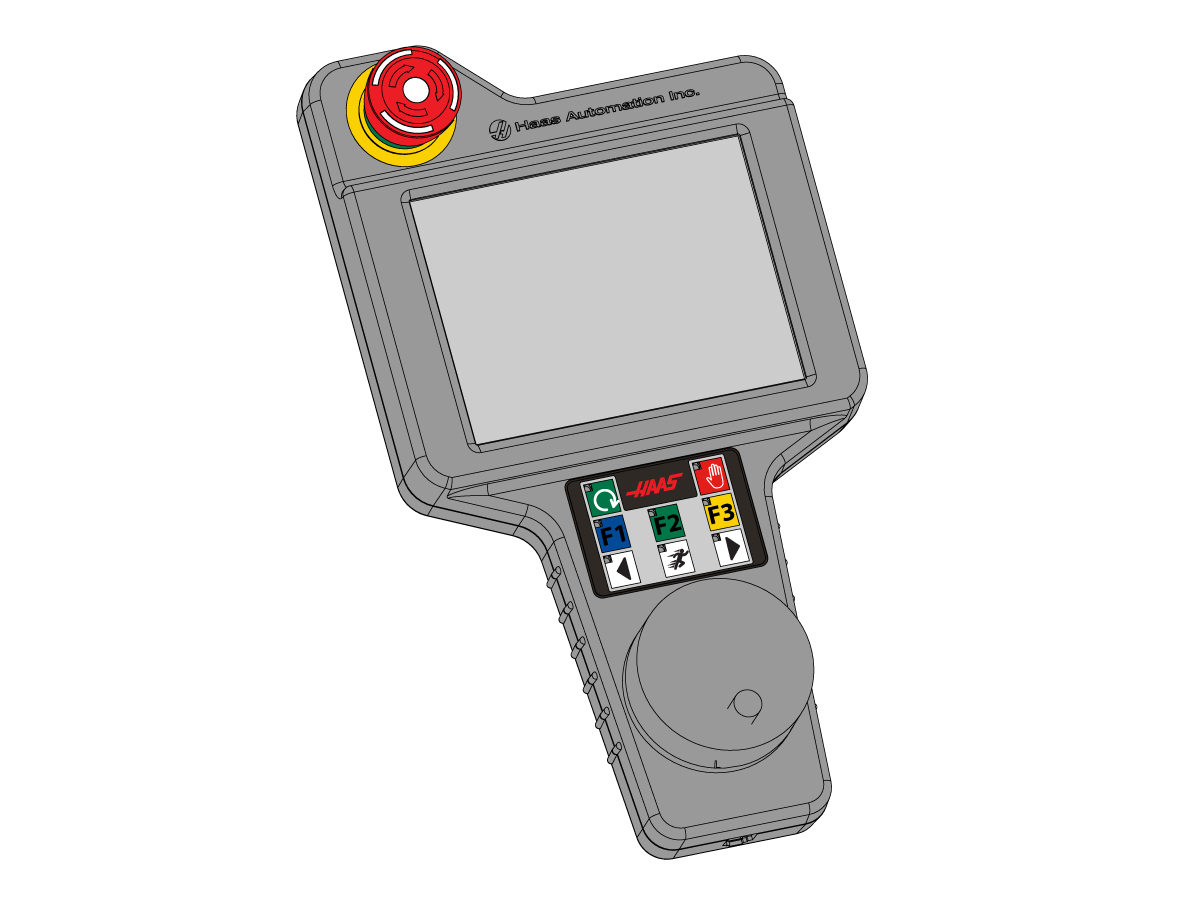
The illustration shows these components:

1. Cycle Start. Has the same function as [CYCLE START] on the control pendant.

2. Feed Hold. Has the same function as [FEED HOLD] on the control pendant.

3. Function Keys. These keys are for future use.

 4. Rapid Jog button. This key doubles the jogging speed when pressed simultaneously with one of the jog direction buttons.

5. Jog Direction Keys. These keys work the same as keypad jog arrow keys. You can press and hold to jog the axis.

6. LCD Touch Screen Display.

7. Holster. To activate the RJH, lift it out of the holster. To deactivate the RJH, put it back into the holster.

8. Function Tabs. These tabs have different functions in different modes. Press the function tab that corresponds to the function you want to use.

9. Handle Jog Wheel. This Handle Jog works like the jog handle on the control pendant. Each click of the handle jog moves the selected axis one unit of the selected jog rate.

Most RJH functions are available in Handle Jog mode. In other modes, the RJH screen displays information about the active or MDI program.

RJH-Touch - Jogging
 
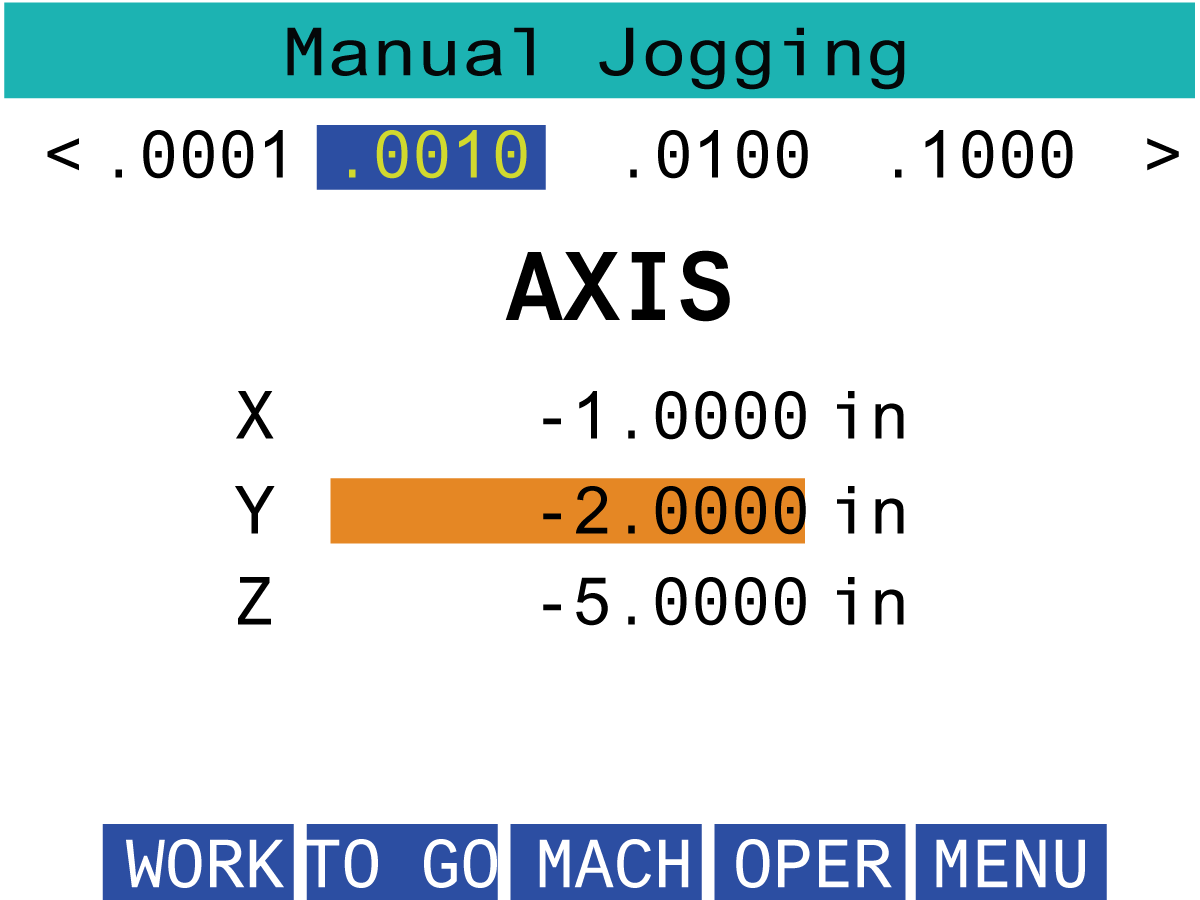
  1. Press [MENU] on the screen.
  2. Press Manual Jogging on the screen. 
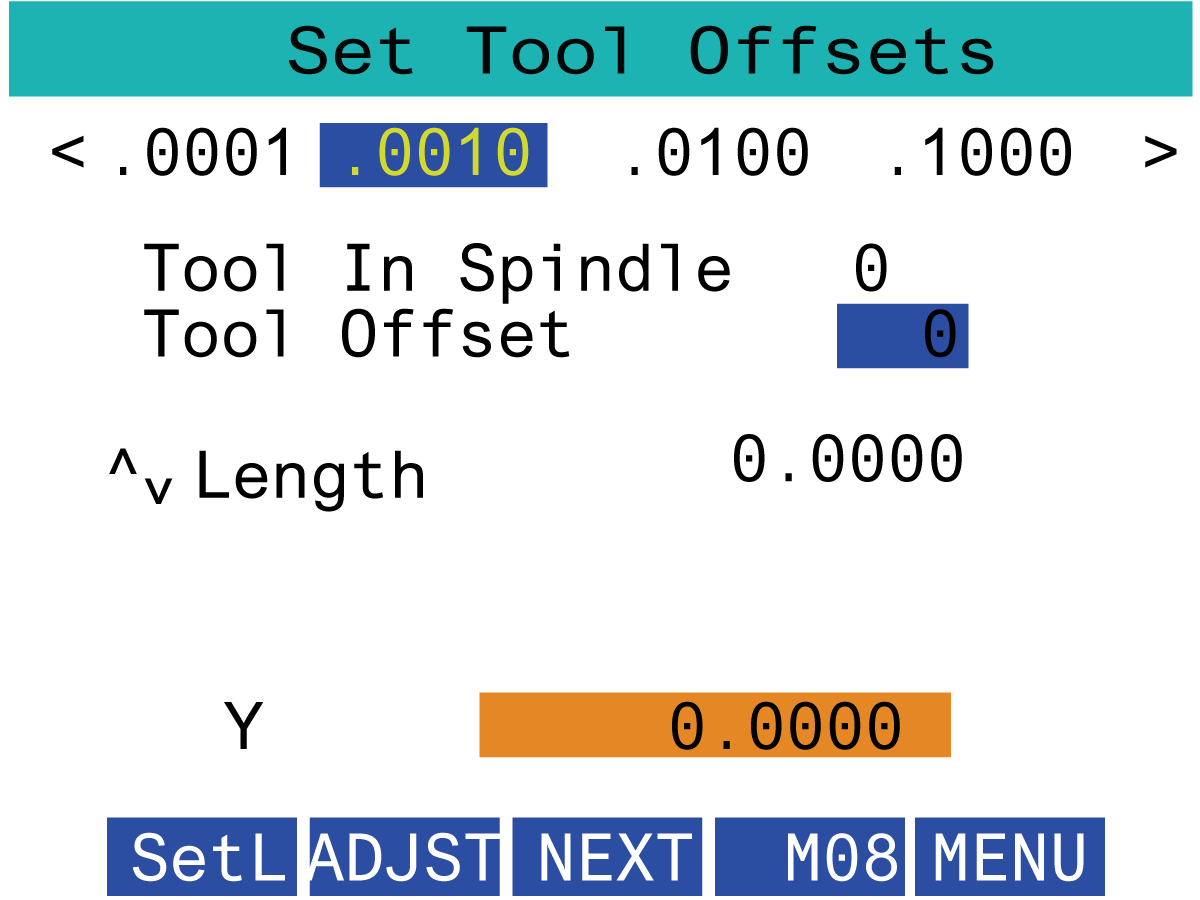
  3. Press the .0001, .0010, .0100, or .1000 on the screen to change the jog rate. 
  4. Press the axis position on the screen or press [F1]/ [F3] on the RJH to change the axis. 
  5. Turn the handle jog wheel to jog the axis. 

RJH-Touch - Tool Offsets

To access this function on the RJH, press [OFFSET] on the control pendant and select the Tool Offsets page, or select TOOL OFFSETS from the RJH operation mode menu.

Press the .0001, .0010, .0100, or .1000 on the screen to change the jog rate.

Press the axis position on the screen or press [F1]/ [F3] on the RJH to change the axis.

Press the [NEXT] on the screen to change to the next tool.

To change the tool offset, highlight the TOOL OFFSET field and use the handle to change the value

Use the jog handle to jog the tool to the desired position. Press the [SETL] function key to record the tool length.

To adjust the tool length, for example, if you want to subtract from the tool length the thickness of the paper you used to touch off the tool:

a) Press the [ADJST] button on the screen.
b) Use the handle jog to change the value (positive or negative) to add to the tool length.
c) Press the [ENTER] button on the screen.

Note: If your machine has the Programmable Coolant option, you can adjust the spigot position for the tool. Highlight the COOLANT POS field and use the handle jog to change the value. You can use the [M08] button on the screen to turn on the coolant and test the spigot position. Press the button on the screen again to turn off the coolant.

RJH-Touch - Work Offsets

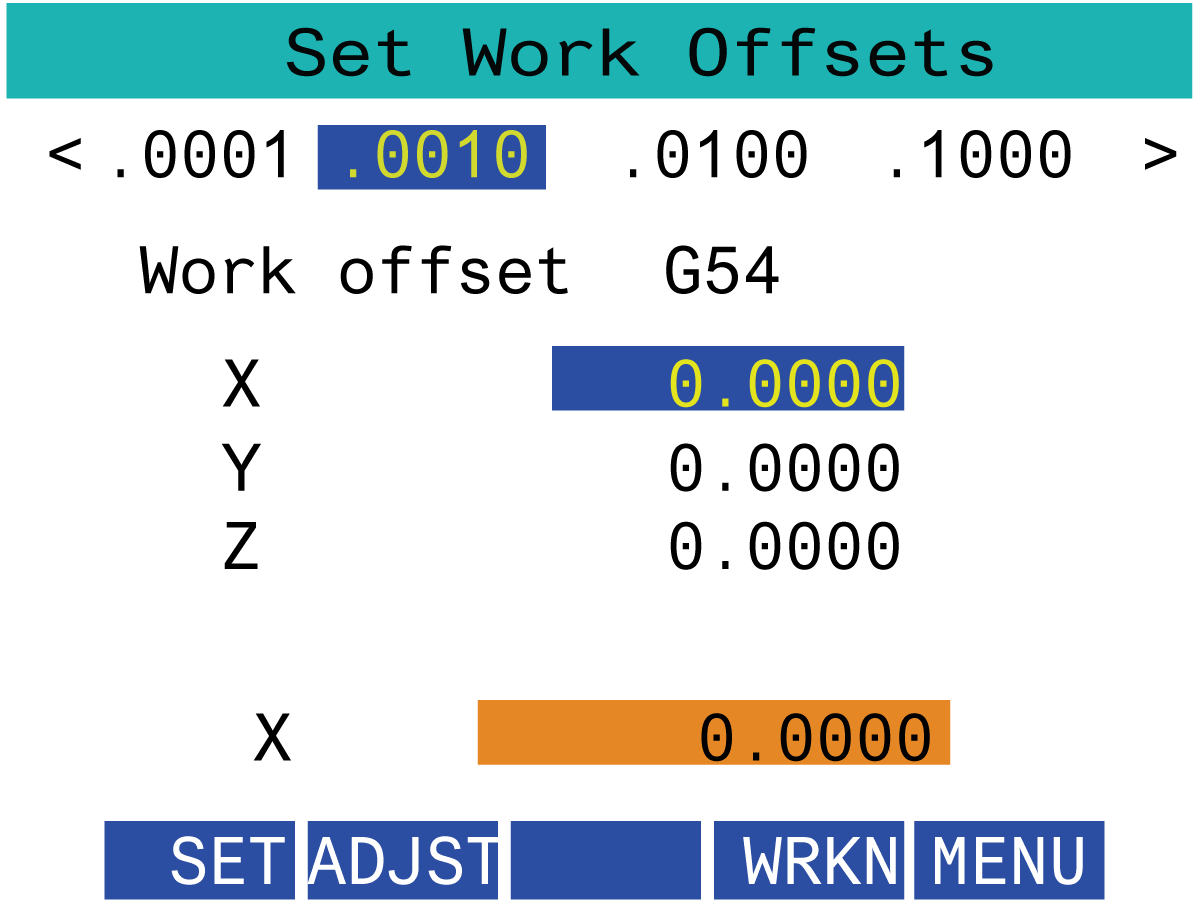
To access this function on the RJH-Touch, press [OFFSET] on the control pendant and select the Work Offsets page, or select WORK OFFSETS from the RJH operation mode menu

Press the .0001, .0010, .0100, or .1000 on the screen to change the jog rate.

Press the axis position on the screen or press [F1]/ [F3] on the RJH to change the axis.

To change the work offset number, press the [WORKN] button on the screen and use the handle jog knob to select a new offset number.

Press the [ENTER] button on the screen to set the new offset. • To move the axes use the handle jog wheel.

When you reach the offset position in an axis, press the [SET] button on the screen to record the offset position. 

To adjust an offset value:

a) Press the [ADJST] function key.
b) Use the pulse knob to change the value (positive or negative) to add to the offset.
c) Press the [ENTER] function key.


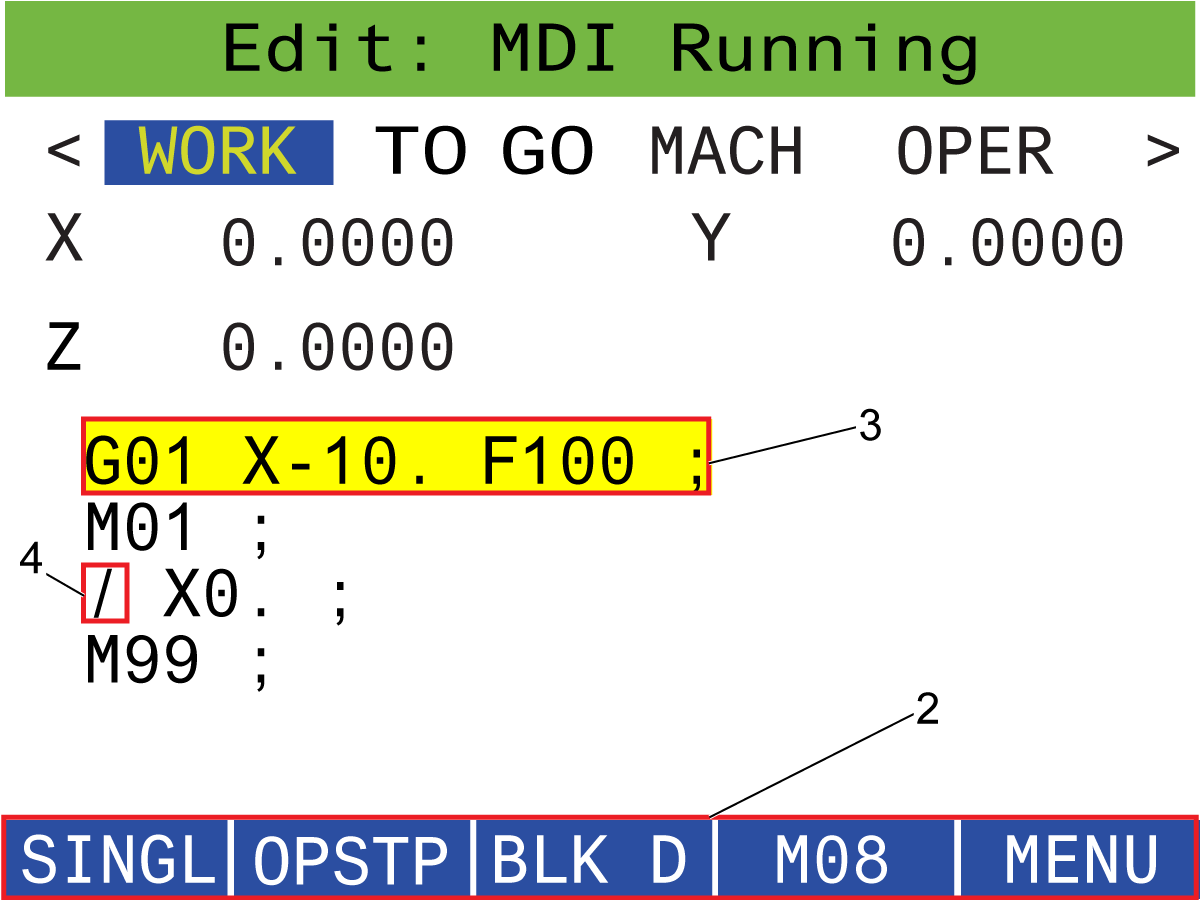
RJH-Touch - Program Mode

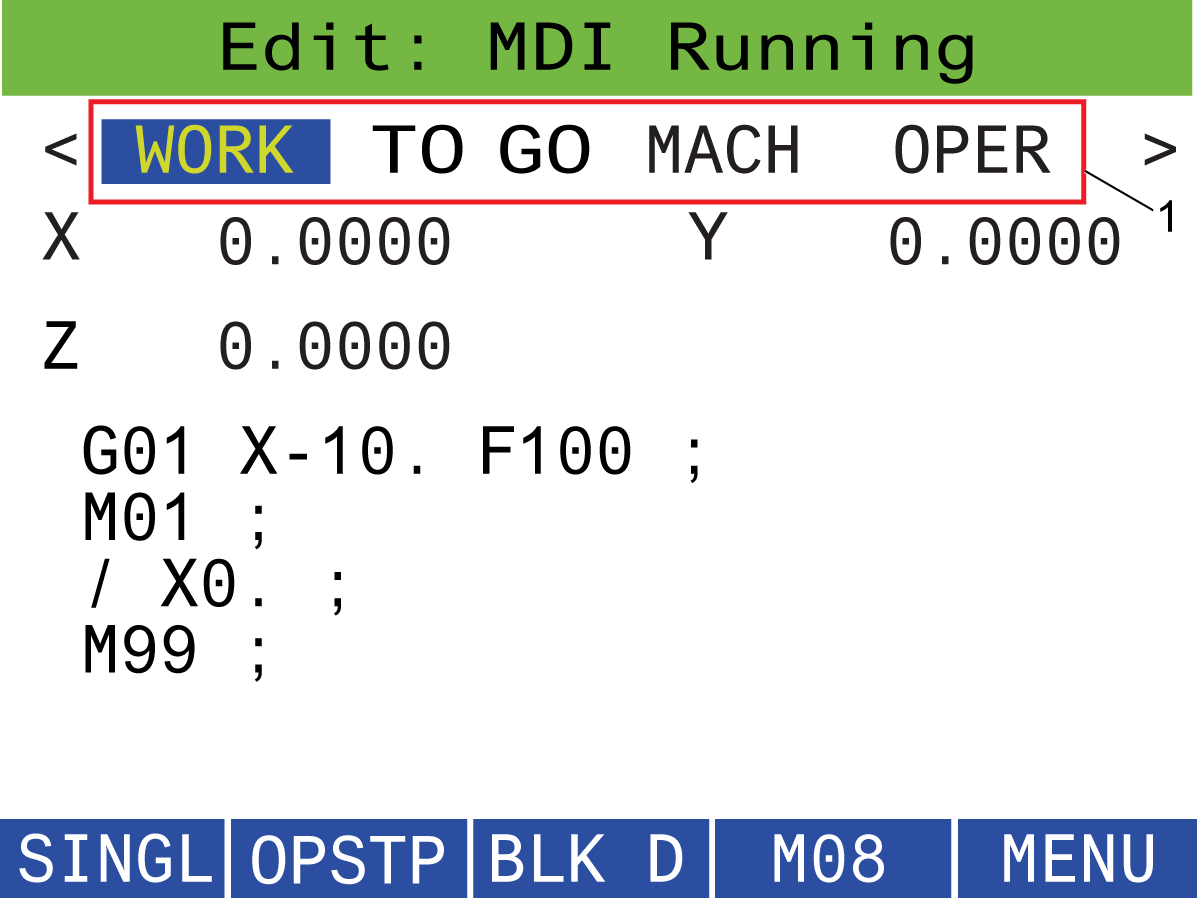
Note: The images show MDI, but the following instructions apply to both MDI and MEM.

When the MDI or MEM is pressed on the pendant there are 4 main tabs [1] on the RJH: WORK, TO GO, MACH, and OPER.

When [WORK] is highlighted, the screen shows the axis positions in relation to part zero.

When [TO GO] is highlighted, the screen shows the distance remaining before the axes reach their commanded position.

When [MACH] is highlighted, the screen displays the axes positions in relation to machine zero.

When [OPER] is highlighted, the screen displays the distance the axes have been jogged.

At the bottom of the screen there are 5 buttons [2]: SINGL, OPSTP, BLK D, M08, MENU.

When SINGL is pressed it will execute the highlghted line [3] and stop and when [CYCLE START] is pressed it'll execute the next line and stop, and so on.

OPSTP is optional stop, when this is pressed the program will stop at every M01 encountered.

Note: On machines with an autodoor, OPSTP will stop at every M01 and open the door(s).

BLK D is block delete, when this is pressed any line beginning with a forward slash [4] will be skipped when the program is ran.

When M08 is pressed, the coolant turns on and the button will then read M09 which will turn the coolant off when pressed.

20.3 RJH-XL Installation

Recently Updated

Remote Jog Handle - Touch Large (RJH-XL) - Installation


AD0533

Introduction

This service kit can be used to install the RJH-XL on compatible machines or to replace the RJH-Touch with an RJH-XL.

Minimum Requirements:

Next Generation Control:

  • Software version 100.21.000.1120 and higher
  • 34-4510 SKBIF FOR NGC W/ RJH-C/VID CCA
  • SKBIF firmware 6.6 and higher
  • RJH firmware RA.03.06 and higher
  • Load the latest configuration files for RJH-XL.

Note: Use this procedure to update the SKBIF and RJH firmware: SKBIF PCB / RJH Firmware Update - NGC

This document applies to the following parts:

  • 93-1000610: REMOTE JOG HANDLE TOUCH LCD (RJH-XL)
  • 32-0929:    RJH TOUCHSCREEN 5IN, HAND UNIT PKGD

Replacement

1

Follow thse steps if replacing a RJH-Touch with a RJH-XL

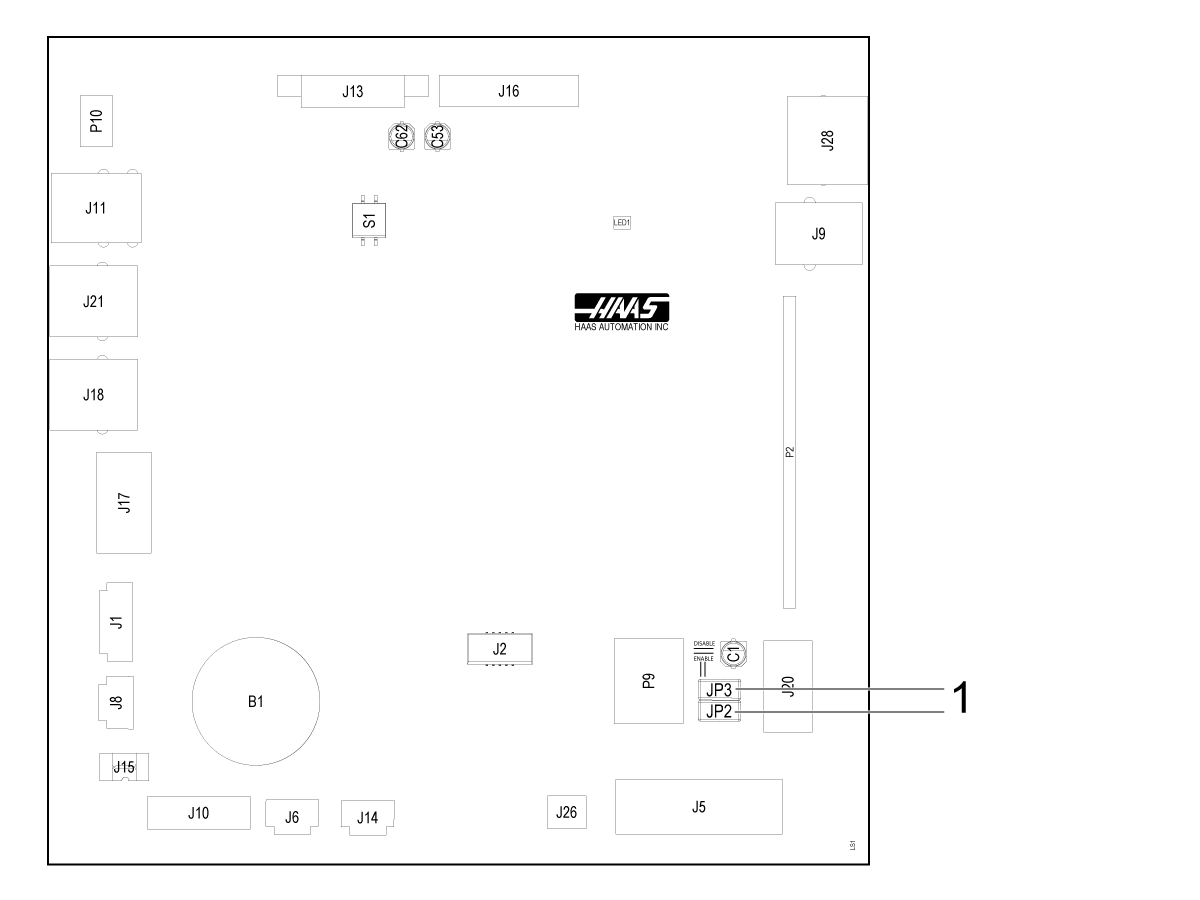
Remove the jumpers [1] on the SKBIF from the horizontal position and replace them in the vertical position. 

WARNING: By not putting the jumpers in the vertical position, E-STOP functionality on the RJH-XL is disabled and the machine is considered unsafe.  Jumpers MUST be inserted vertically.

2

Remove the RJ12 COIL CORD [1] from RJH-Touch [2] and the HOLSTER [3].

3

Remove the (3) BHCS 10-32 X 1/2 [1] to remove the HOLSTER [2].

Install the HOLSTER [3] to the right side of the pendant using the (3) BHCS 10-32 X 1/2 [3].

NOTE: Note Pad will need to be removed in order to install the RJH-XL.

4

Connect the RJ12 COIL CORD [1] to the HOLSTER [2] and the RJH-XL [3].

RJH-XL Wiring Installation

1

Free Hanging Thin Pendant or Thick Pendant with RJH-C Mounting [1].

1. Remove the back cover of the pendant.

2. Remove any plugs or screws at the RJH mounting location.

3. Wire the 6’ RJ12 cord through the 1/2” hole in the pendant and connect to P9 on the SKBIF.

4. Install the end of the 6’ RJ12 cable in the RJH Holster.

5. Attach the RJH Holster [2] to the pendant, storage cabinet or adapter bracket using three BHCS 10-32 x 1/2 screws.

2

The jumpers [1] on the SKBIF need to be removed from the horizontal position and replaced in the vertical position.

RJH-XL Hand Unit Installation

1

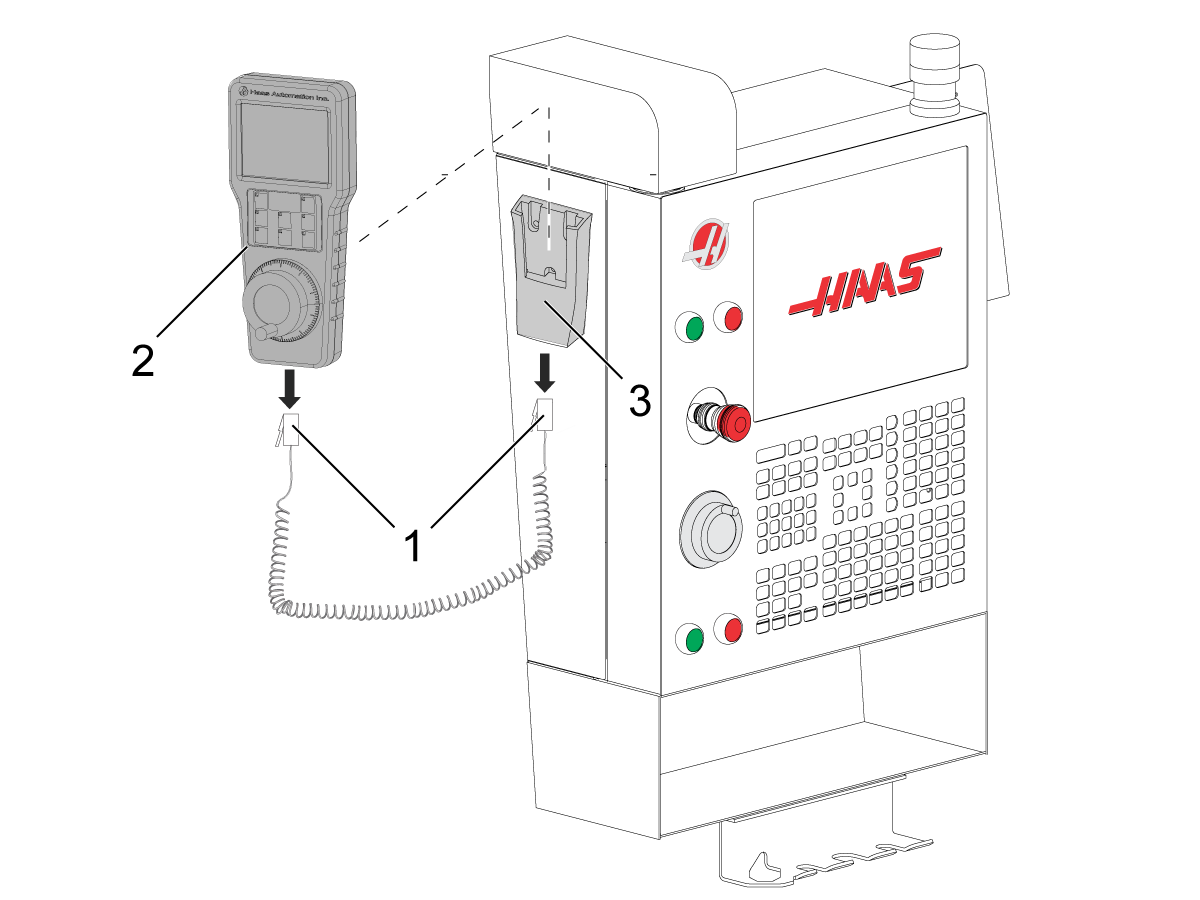
NOTE: The holster [2] for the RJH-XL is on the right side of the pendant.

Connect one end of the RJ12 COIL CORD [1] to the receptacle on the bottom of the HOLSTER [2].

Connect the other end of the RJ12 COIL CORD [1] to the receptacle on the bottom of the RJH-XL [3].

2

Hang up the RJH-XL [3].

Plug any unused holes.

RJH-XL - Operation

Refer to the Mill Interactive Operator's Manual for Remote Jog Handle XL Operation information.

Mill Interactive Operator's Manual

Verification

1

Load the latest configuration files for the RJH-XL.

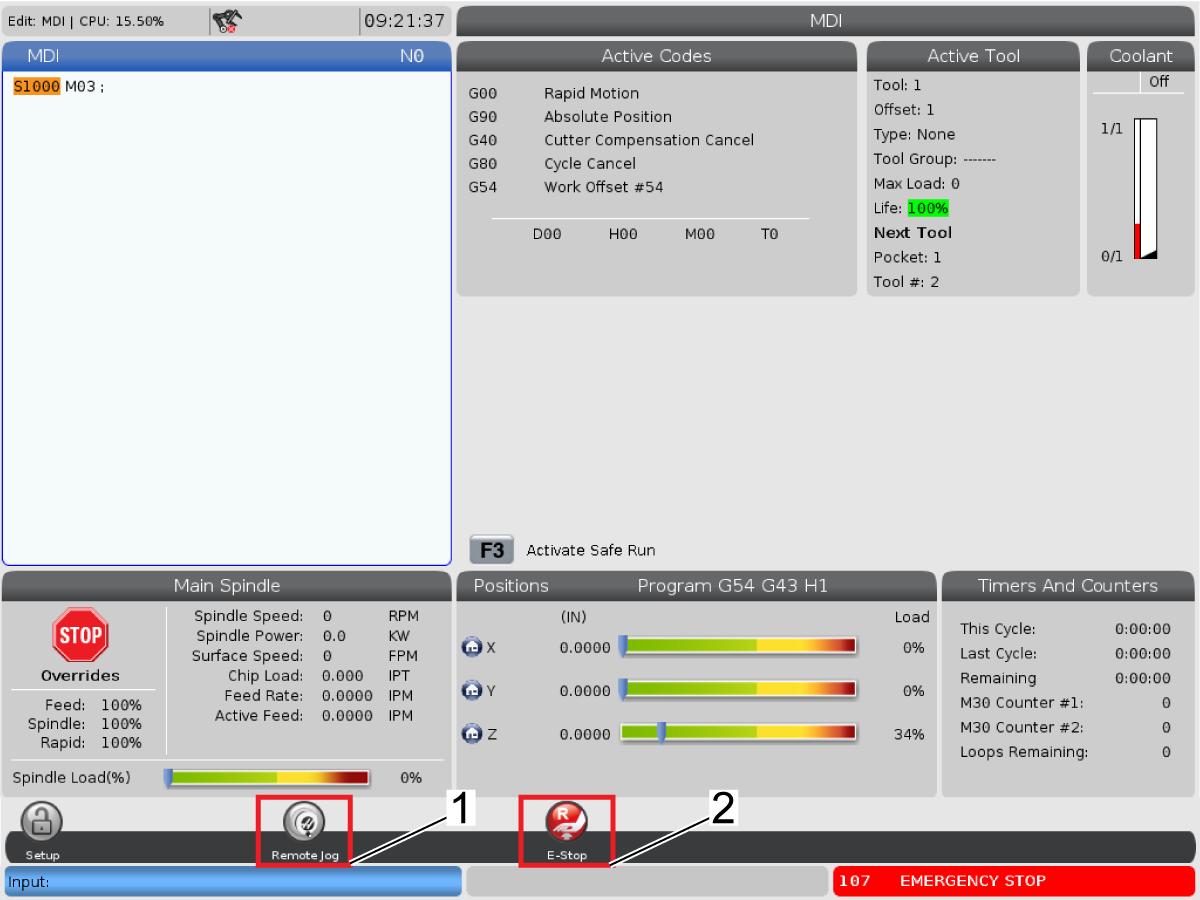
When taking the RJH-XL off the holster, the Remote Jog icon [1] should pop up on the bottom of the screen.

Then, push the [E-STOP] on the RJH-XL and make sure the E-Stop icon [2] pops up on the screen to ensure the remote e-stop works correctly.

20.4 RJH - Troubleshooting Guide

Recently Updated

Remote Jog Handle - Troubleshooting Guide - NGC


TG0119

Revision B - 6/2025

Symptom Table

Symptom Possible Cause Corrective Action
Alarm 546 SERIAL KEYBOARD BUFFER OVERFLOW, or none of the functions of the RJH work. There is a bad connection at the RJH Serial Keyboard Interface PCB or at the Maincon/MOCON. Check the cables and connections.
There is a faulty Serial Keyboard Interface PCB. Test the RJH for issues.
Machines with SKBIF Version 6.xx.  Alarm 546 SERIAL KEYBOARD BUFFER OVERFLOW. The SKBIF firmware is outdated. Make sure you have SKBIF firmware version 6.6 or higher.  Refer to SKBIF PCB / RJH Firmware Update - NGC procedure.
The Jog Handle pulse encoder does not generate axis movement. There is a faulty or contaminated Jog Handle Pulse Encoder. Check the jog handle for signs of contamination or physical damage.
Remote Jog Handle Touch - The machine motion when jogging is jerky when using the 0.010" or 0.100" increments. The remote Jog handle is outdated Update the RJH-Touch firmware to the latest version.  Refer to SKBIF PCB / RJH Firmware Update - NGC procedure.
Alarm 9421 RJH EMERGENCY STOP SWITCH ERROR The E-STOP jumpers JP2 & JP3 on the SKBIF PCB are in the horizontal position. Orient the E-STOP jumpers to the vertical position on the SKBIF PCB to enable the RJH E-STOP. Cycle power the machine to clear the alarm.
Docking or undocking the RJH is not detected by the machine. The magnet on the back of the RJH or the cable is faulty. Inspect the magnet behind the RJH holster to verify that it is correctly placed. Navigate to Diagnostics > Keyboard I/O and locate RJH OUTPUT #9 ON_HOOK. When the magnet aligns correctly with the RJH the ON_HOOK output will toggle from 0 to 1.

Recently Viewed Items

You Have No Recently Viewed Items Yet

Feedback
Haas Logo

Haas Delivered Price

This price includes shipping cost, export and import duties, insurance, and any other expenses incurred during shipping to a location in France agreed with you as a buyer. No other mandatory costs can be added to the delivery of a Haas CNC Product.

KEEP UP WITH THE LATEST HAAS TIPS AND TECHNOLOGY...

Sign up now!   

HAAS TOOLING ACCEPTS THE FOLLOWING:

  • Service & Support
  • Owners
  • Request Service
  • Operator Manuals
  • Haas Parts
  • Rotary Repair Request
  • Pre-Install Guides
  • Shopping Tools
  • Build & Price a New Haas
  • Available Inventory
  • The Haas Price List
  • CNCA Financing
  • About Haas
  • DNSH Statement
  • Export Compliance
  • Careers
  • Certifications & Safety
  • Contact Us
  • History
  • Terms & Conditions
  • Haas Tooling Terms & Conditions
  • Privacy
  • Warranty
  • Haas Community
  • Haas Certification Program
  • Haas Motorsports
  • Gene Haas Foundation
  • Haas Technical Education Community
  • Events
  • Join the Conversation
  • Facebook
  • X
  • Flickr
  • YouTube
  • LinkedIn
  • Instagram
  • TikTok
© 2026 Haas Automation, Inc – CNC Machine Tools
This site is protected by reCAPTCHA and the Google Privacy Policy and Terms of Service apply.

2800 Sturgis Rd., Oxnard, CA 93030
Toll Free: (888) 817-4446 / Fax: 805-278-8554